Using Debian Tool Set in Android System
The Challenge
Android, while Linux-based, uses a minimal userspace focused on mobile applications. Many powerful Linux development and debugging tools are unavailable:
- Build Tools: gcc, make, autotools
- Analysis Tools: perf, strace, gdb
- Network Tools: tcpdump, nmap, iperf
- System Tools: htop, iotop, systemtap
For developers debugging Android internals or kernel issues on devices, this limitation is frustrating. Historically, workarounds included:
- Cross-compiling individual binaries (tedious and dependency hell)
- Using limited BusyBox toolchains (missing advanced features)
- Chrooting to Ubuntu/Debian (complex setup, large footprint)
Solution: ADEB (Android Debian)
ADEB provides an elegant solution: a minimal Debian environment running in a container-like setup on Android. It gives you access to thousands of Debian packages while maintaining Android functionality.
What is ADEB?
ADEB creates a Debian rootfs that coexists with Android:
- Minimal Footprint: ~200MB base installation
- Native Execution: No emulation, runs directly on Android kernel
- Package Management: Full apt support for installing tools
- Android Integration: Can access Android filesystems and processes
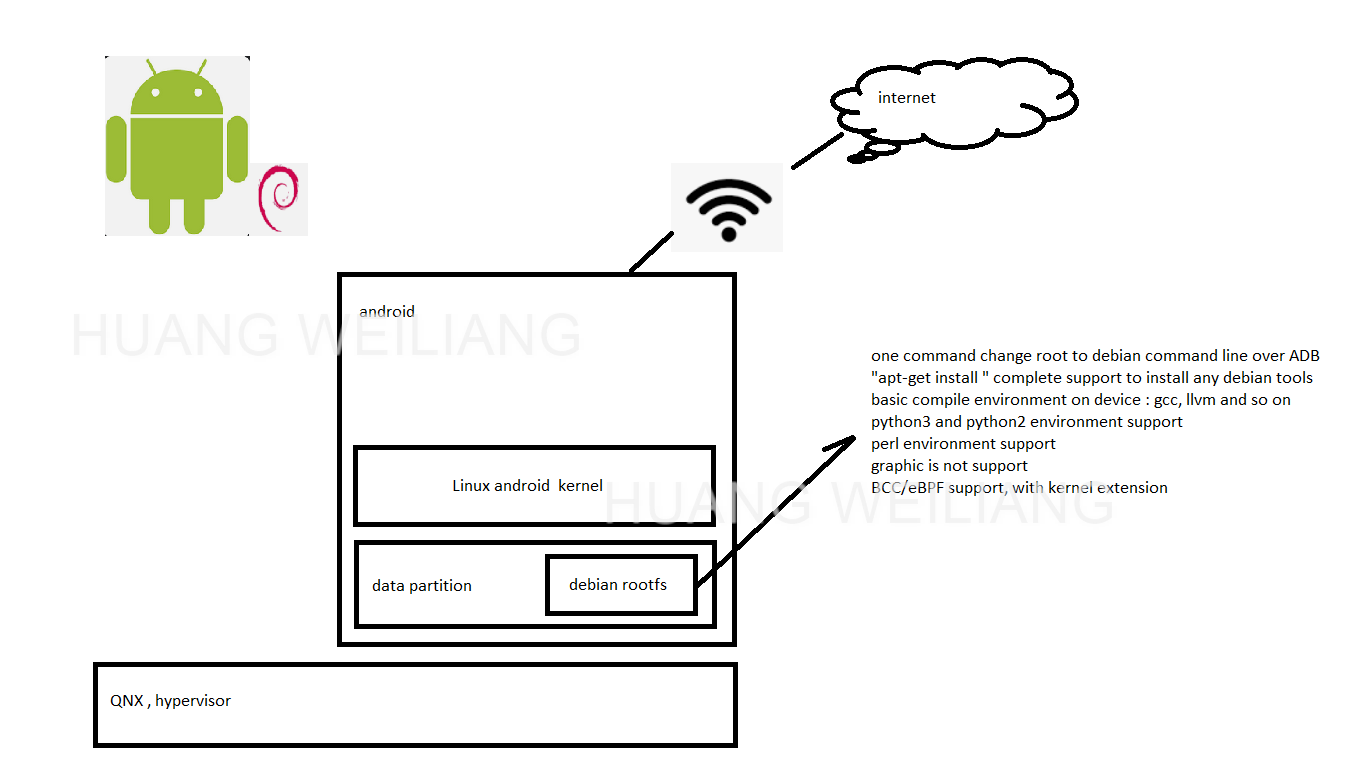
Architecture Overview
┌─────────────────────────────────────┐
│         Android System              │
│  ┌──────────────────────────────┐   │
│  │    Android Apps & Services   │   │
│  └──────────────────────────────┘   │
│  ┌──────────────────────────────┐   │
│  │  ADEB Debian Environment     │   │
│  │  ┌────────────────────────┐  │   │
│  │  │ Debian Packages        │  │   │
│  │  │ (gcc, perf, gdb, etc.) │  │   │
│  │  └────────────────────────┘  │   │
│  └──────────────────────────────┘   │
│  ┌──────────────────────────────┐   │
│  │     Android Bionic libc      │   │
│  │     Linux Kernel             │   │
│  └──────────────────────────────┘   │
└─────────────────────────────────────┘
ADEB uses a chroot-like mechanism to switch between Android and Debian environments. The Debian rootfs is mounted under /data/debian, and you enter it with a wrapper script.
Setting Up ADEB
Prerequisites
- Rooted Android device or emulator
- adb access
- ~500MB free storage space
Installation Steps
- Download ADEB:
git clone https://github.com/joelagnel/adeb cd adeb - Prepare Debian Image:
```bash
Build or download pre-built Debian rootfs
./adeb prepare –arch arm64 –build-debs
Or download pre-built:
wget https://github.com/joelagnel/adeb/releases/download/v1.0/debian-buster-arm64.tar.gz
3. **Push to Device**:
```bash
./adeb install debian-buster-arm64.tar.gz
- Enter Debian Environment:
adb shell
su
adeb shell
You’re now in a Debian environment with root access!
Practical Use Cases
Case 1: Kernel Performance Analysis
Android’s stripped-down environment lacks proper perf tools:
# In ADEB Debian environment
apt update
apt install linux-perf

# Now analyze system performance
perf top                    # Real-time profiling
perf record -a -g sleep 10  # Record system-wide
perf report                 # Analyze results
This is invaluable for kernel developers optimizing Android performance.
Case 2: Network Debugging
Install comprehensive network analysis tools:
apt install tcpdump wireshark-common nmap iperf3

# Capture network traffic
tcpdump -i wlan0 -w capture.pcap

# Test network throughput
iperf3 -s  # On device
iperf3 -c <device-ip>  # From PC
Case 3: Development on Device
Compile code directly on the Android device:
apt install build-essential git vim

# Clone and build a project
git clone https://github.com/example/project
cd project
./configure
make -j$(nproc)
Useful for quick prototyping or when cross-compilation is problematic.
Case 4: Advanced Debugging
apt install gdb strace ltrace

# Debug running Android processes
gdb -p <pid>

# Trace system calls
strace -p <pid> -o trace.log

# Trace library calls
ltrace -p <pid>
File System Access
ADEB can access Android filesystems:
# From Debian environment
ls /android/data/           # Access Android data
ls /android/system/         # Access system partition
ps aux | grep android       # See Android processes
This bidirectional access is incredibly powerful for debugging.
Package Management
ADEB gives you the full Debian package ecosystem:
# Search for packages
apt search kernel

# Install development tools
apt install \
    autoconf automake libtool \
    pkg-config bison flex \
    python3 python3-pip

# Install libraries
apt install \
    libssl-dev libsqlite3-dev \
    libncurses-dev libreadline-dev
Over 59,000 packages at your fingertips!
Performance Considerations
CPU: Native execution means no emulation overhead. Performance is identical to running on bare Linux.
Memory: Debian processes share the same kernel as Android, so memory overhead is minimal (unlike full VMs).
Storage: Base installation ~200MB; grows with installed packages. Use external SD card for large toolchains.
I/O: Direct kernel access means filesystem performance matches Android.
Limitations
No Systemd: Android’s init system differs from standard Linux; systemd services won’t work
No GUI: ADEB is command-line only (though X11 forwarding is theoretically possible)
Root Required: Must have root access to setup chroot environment
Kernel Dependencies: Some tools require kernel features that may be disabled in Android kernels
Alternatives Comparison
ADEB vs Termux
- Termux: No root required, but limited to Termux packages
- ADEB: Requires root, but full Debian package ecosystem
ADEB vs Linux Deploy
- Linux Deploy: Full Linux distro, heavier resource usage
- ADEB: Lighter weight, better Android integration
ADEB vs Cross-Compilation
- Cross-Compile: Build on PC, push binaries
- ADEB: Build and test directly on device
Best Practices
- Keep Android Clean: Don’t modify Android system files from ADEB
- Use Separate Partitions: If possible, keep ADEB on SD card
- Regular Backups: Backup your configured Debian environment
- Minimal Installation: Only install packages you need
- Monitor Resources: Android has limited RAM; watch memory usage
Advanced: Building Custom Images
Create optimized ADEB images for specific purposes:
# Create minimal kernel development image
./adeb prepare --arch arm64 \
    --packages "linux-perf,bpftrace,trace-cmd,kernelshark"

# Create network analysis image
./adeb prepare --arch arm64 \
    --packages "tcpdump,nmap,iperf3,netcat,socat"
Troubleshooting
Issue: DNS not working in ADEB Solution:
echo "nameserver 8.8.8.8" > /etc/resolv.conf
Issue: Can’t access Android filesystems
Solution: Ensure you’re entering ADEB with su privileges
Issue: Package installation fails Solution: Check available storage space; move ADEB to SD card if needed
Issue: Binary incompatibility errors Solution: Ensure ADEB architecture (arm64 vs armv7) matches device
Real-World Example: Kernel Bug Hunting
Here’s how ADEB helped debug an Android kernel issue:
# Enter ADEB
adb shell
su
adeb shell

# Install debugging tools
apt update && apt install linux-perf bpftrace trace-cmd

# Trace the problematic subsystem
trace-cmd record -e sched -e irq sleep 10

# Analyze with trace-cmd
trace-cmd report | less

# Profile with perf
perf record -a -g --call-graph dwarf sleep 10
perf script | flamegraph.pl > flame.svg
This workflow would be impossible with standard Android tools.
Conclusion
ADEB bridges the gap between Android’s limited toolset and Linux’s rich development ecosystem. For kernel developers, system engineers, and power users, it’s an essential tool that transforms an Android device into a capable Linux development platform.
Whether you’re debugging kernel issues, analyzing network performance, or compiling software on-device, ADEB provides the familiar Linux environment you need without sacrificing Android functionality.
