Recently I switched from windows to Macbook which is my first time to use the MacOS. It is fresh to me like the feeling when I start to use Linux OS. Well, I knew MacOS is unix-like OS, so it has the genie like Linux. I bought the Macbook M5 Pro with 2TB SSD and 48GB RAM. My intension is to use it to learn AI stuff, also I do need a personal laptop for my master studying. I have a very old laptop which is over 10 years. It is also the time to buy a new laptop. Although most of time I am using company’s laptop to process some personal topics.
I am thinking how to use it to do potential development and investigation. The major requirement from me is about Linux and QNX development and study. For Linux development, my major purpose is about kernel compiling and simulation by the qemu. I had some introduction before[1] [2] to setup the qemu environment for the google android kernel project, combine with a busybox I can lunch a tiny linux with android kernel, which makes me possible to debug and study the android kernel. Google android kernel project is not just kernel, it also includes the complete toolchain and build environment such as Bazel. Unfortunately, Bazel is not supported well by MacOS. I have to install virtual machine. The best virtial machin is Orbstack in MacOS. I tried Docker but the corss compile efficiency is worse than Orbstack. As you know the biggest problem is M serials apple silicon is ARM based processor, we need a VM with better efficiency for the x86/amd64 simulation. Although the Orbstack still slower than the native Linux machine, but it is acceptable. I tried google project android14-6.1 branch. It can be built successfully.
But the android16-6.12 branch can not be built. I see there is a ticket reported to Orbstack some months ago. The issue is not sovled yet. So to build the android kernel v6.12 I tried to build it manually which w/o the Bazel environment.
Steps to construct QEMU arm64 Linux with busybox RFS
Fetch the code:
git clone --branch android16-6.12-lts --single-branch --depth 1 \
                https://android.googlesource.com/kernel/common
Setup build env: we can reuse the prebuilts folder from any branch of google android kernel project.
export PATH=$PATH:/Volumes/my1tb/test/prebuilts/clang/host/linux-x86/clang-r536225/bin/
export ARCH=arm64
export SUBARCH=arm64
export CLANG_TRIPLE=aarch64-linux-gnu-
Generate kernel configuration:
make O=out LLVM=1 gki_defconfig
Please note that after the .config is generated, we need to modify the out/.config to add any drivers we need and the initramfs to compile the busybox ramdisk into the kernel image. For example, we need to enable the virtio_blk, virtio_net and so on. Here is the .config file i am used.
Then compile the kernel:
make O=out LLVM=1 -j4
Generate the Image:
llvm-objcopy -O binary -R .notes -R .comment -S vmlinux Image
Launch the Kernel with QEMU: simplest command
qemu-system-aarch64 -machine virt -cpu cortex-a57  -m 1024 -smp 4 \
                         -kernel /Users/huang/workspace/android/Image  \
                         --append "rdinit=/linuxrc root=/dev/vda rw console=ttyAMA0 loglevel=8"  \
                         -nographic  -accel hvf
Extension steps to construct QEMU arm64 Linux with debian RFS
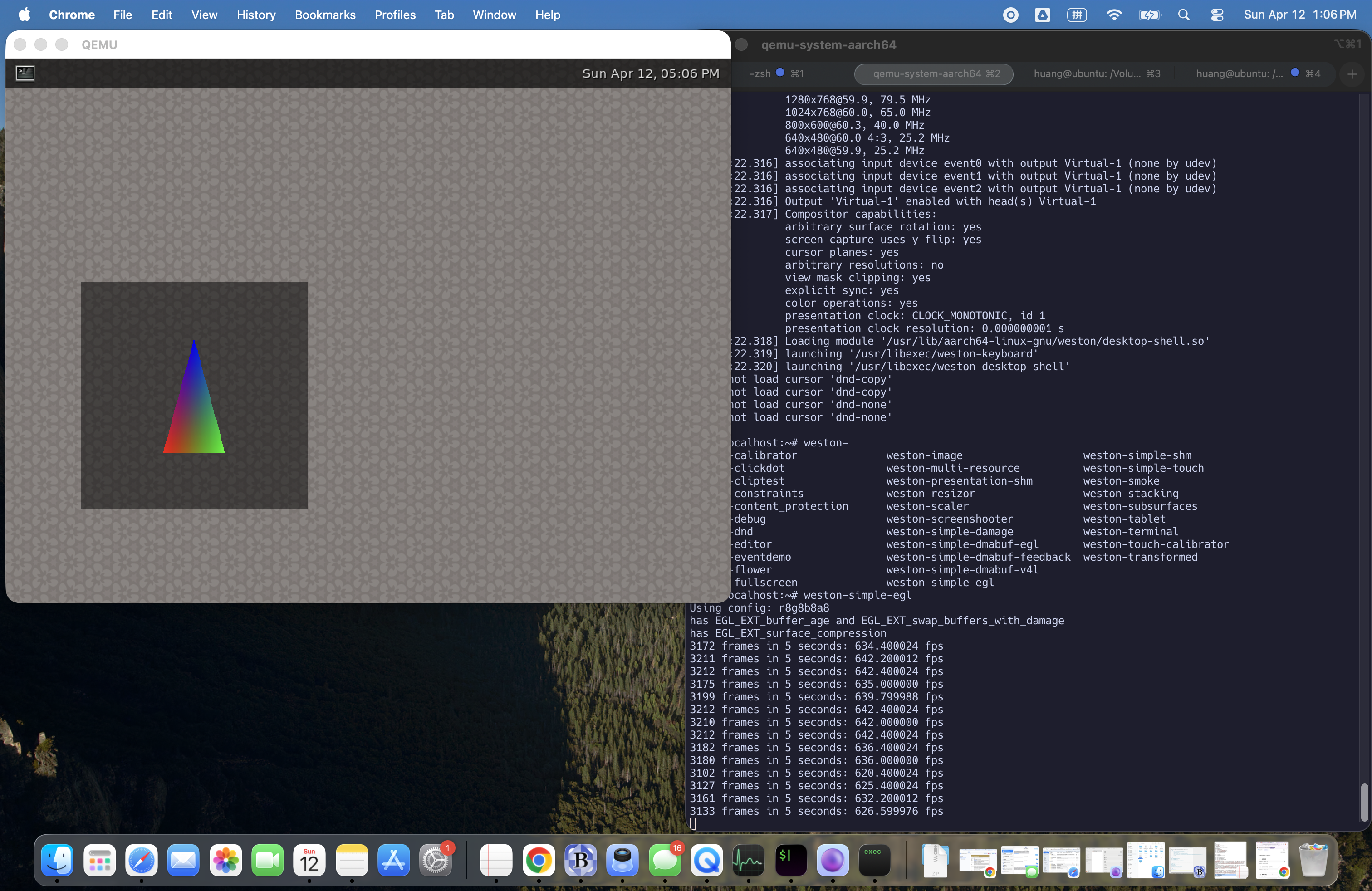
After i make the arm64 + Busybox RFS successfully running. I tried to enable the graphic for this construction.
Below commands enabled the virtio-gpu, with this config, we are able to see the drm graphic drivers in the qemu arm64 kernel.
qemu-system-aarch64 -cpu cortex-a57 -machine type=virt  -m 1024 -smp 4 \
         -kernel /Users/huang/workspace/android/Image  \
         --append "rdinit=/linuxrc root=/dev/vda rw console=ttyAMA0 loglevel=8 drm.debug=0x1ff console=tty0 video=Virtual-1:800x600@60"   \
         -nographic  -accel hvf \
         -device virtio-gpu,max_outputs=1 -display cocoa -vga none  \
         -netdev user,id=net0 -device virtio-net-device,netdev=net0 \
         -virtfs local,path=/Users/huang/workspace/android,mount_tag=hostshare,security_model=passthrough,id=hostshare
At this moment we are able to use modetest to run the graphic test directly. But i want to make weston up running. To speed up, I am using the prebuilt debian 13 arm64 system image.
Then use this command to launch the arm64 kernel + debian arm64 RFS.
qemu-system-aarch64 -cpu cortex-a57 -machine type=virt  -m 1024 -smp 4 \
         -kernel /Users/huang/workspace/android/Image4  \
         --append "root=/dev/vda1 rw console=ttyAMA0  loglevel=2 drm.debug=0x1ff video=Virtual-1:800x600@60"   \
         -nographic  -accel hvf \
         -device virtio-gpu,max_outputs=1 -display cocoa -vga none  \
         -netdev user,id=net0 -device virtio-net-device,netdev=net0 \
         -virtfs local,path=/Users/huang/workspace/android,mount_tag=hostshare,security_model=passthrough,id=hostshare \
         -device virtio-keyboard-pci  -device virtio-mouse-pci -drive format=raw,file=/Volumes/my1tb/debian-13-generic-arm64.raw \
         -no-reboot
After we launched the system, we can use below command to start the weston:
export XDG_RUNTIME_DIR=/run/user/0
mkdir -p $XDG_RUNTIME_DIR
chmod 700 $XDG_RUNTIME_DIR
weston --backend=drm-backend.so --socket=wayland-0 &
To make apt-get command working to install any applications, we need to enable the network:
ifconfig eth0 up
udhcpc -i eth0
ip addr add 10.0.2.15/24 dev eth0
ip link set eth0 up
ip route add default via 10.0.2.2
echo "nameserver 10.0.2.3" > /etc/resolv.conf
Start the graphic test command of Weston:
weston-simple-egl
